---
title: AR Invoice
description: "AR Invoice RTI (ready to invoice): invoice splitting \nDirect Invoices \nInvoicing rules \nAggregation Rules \nInvoices credits payments partial payments\nUserfield mapping\nDimension mapping"
---
[Skip to content](https://wiki.quickclaim.io/knowledge/ar-invoice#main-content)
[More support](https://wiki.quickclaim.io/knowledge/kb-tickets/new?hsLang=en) [Support portal](https://wiki.quickclaim.io/support?hsLang=en)
[.png?width=512&height=100&name=Logo%20(side-by-side).png)](https://quickclaim.com.au/)
- [Existing Tickets](https://wiki.quickclaim.io/tickets-view)
- [Knowledge Base](https://wiki.quickclaim.io/knowledge)
- [PRODA](https://proda.humanservices.gov.au/prodalogin/pages/public/login.jsf)
- [Sign out](https://wiki.quickclaim.io/_hcms/mem/logout)
Open main navigation
Close main navigation
- [Existing Tickets](https://wiki.quickclaim.io/tickets-view)
- [Knowledge Base](https://wiki.quickclaim.io/knowledge)
- [PRODA](https://proda.humanservices.gov.au/prodalogin/pages/public/login.jsf)
- [Sign out](https://wiki.quickclaim.io/_hcms/mem/logout)
- [More support](https://wiki.quickclaim.io/knowledge/kb-tickets/new)
- [Support portal](https://wiki.quickclaim.io/support)
- [Contact us](mailto:support@quickclaim.com.au)
[Contact us](mailto:support@quickclaim.com.au)
How can we help you?
- There are no suggestions because the search field is empty.
1. [Knowledge Base](https://wiki.quickclaim.io/knowledge?hsLang=en)
2. [Accounts Receivable (AR) Module](https://wiki.quickclaim.io/knowledge/accounts-receivable-ar-module?hsLang=en)
# AR Invoice
## The Accounts Receivable (AR) Invoice module provides a flexible framework for managing and tracking invoices across both Support at Home (SAH) and NDIS billing workflows.
### Understanding AR Invoice Structure
AR Invoices consist of two levels:
#### Level 1: Invoice Header
The Invoice Header contains information that applies to the entire invoice, including:
- Invoice Number
- Invoice Type
- Date Issued
- Due Date
- Recipient Information
- Payment Status (unpaid, partially paid and paid)
- Invoice Total
- 10 configurable User Fields, etc
##### Header User Fields
Each invoice header contains **10 configurable User Fields**.
These fields can be mapped to data from any available user field across supported modules, allowing organizations to store important invoice-level information such as: Cost Centre, Region, Program, Internal Reference Numbers or Customer-specific data requirements,etc.
---
#### Level 2: Invoice Lines
Within each invoice are one or more invoice lines.
**Navigation**: Go to AR Invoices. We can view the detailed invoice lines by clciking on the "**Detail**" icon in actions column.
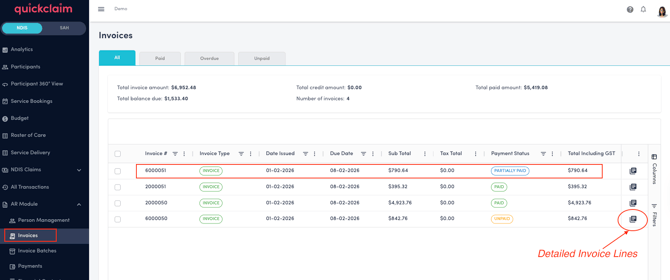
Each invoice line contains service or transaction-level information and includes **10 configurable Dimensions**.
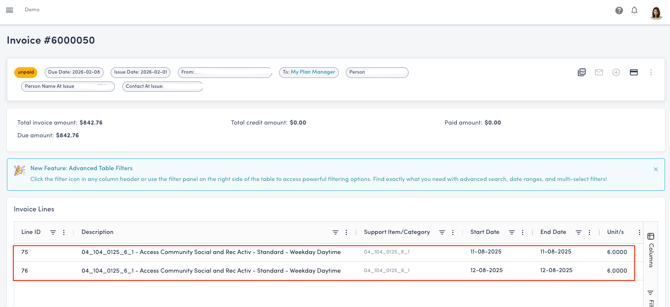
Dimensions are typically used when information needs to be stored at the individual line level rather than the invoice header level.
### Configuring AR Invoice User fields and Dimensions
Every module within quickclaim maintains its own set of User Fields.
Examples include:
##### Support at Home Modules
- Care Recipient
- Transactions
- Ready to Invoice
##### NDIS Modules
- Participant
- Service Delivery
- Roster of Care
- Ready to Claim
- Ready to Invoice
For AR Invoices, the 10 invoice header user fields can be mapped to any available user field from supported modules. Similarly, invoice lines contain 10 configurable dimensions which can be mapped from any available user field or dimension across the source modules.
This allows organizations to tailor invoice data to their reporting, finance, and integration requirements.
### Ready to Invoice (RTI) Invoice Splitting
When invoices are generated from the Ready to Invoice page, quickclaim applies invoice grouping rules.
### Default Grouping Behaviour
When the **Invoice All** function is used for a care recipient:
- Transactions are grouped by Care Recipient.
- Transactions are grouped by Payment Type.
This typically results in separate invoices for:
- Government-funded amounts (Department and Compensation)
- Contributions
- Gap payments
All invoice lines belonging to the same care recipient and payment type are grouped into the same invoice.
### Aggregation Rules
Aggregation determines how invoice lines are combined within an invoice.
By default:
- No aggregation is applied.
- Every transaction becomes an individual invoice line.
##### Custom Aggregation
Organizations have an option to reduce the number of invoice lines by grouping transactions based on any user field or data.
### Invoicing Rules
An Invoicing Rule determines how invoices are created.
This may include:
### User Field Mapping
Defines how source data populates invoice header fields and dimensions.
### Grouping Rules
Defines how transactions are grouped into invoices.
Examples:
- By Care Recipient
- By Funding Type
- By Program
- By Cost Centre
### Invoice PDF Configuration
Users can download invoice PDFs directly from the Invoice Details page.
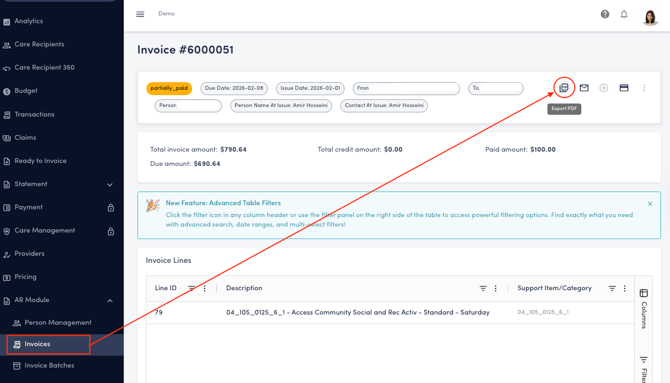
The invoice PDF can be customized to include organization-specific branding, logo and information which needs to be added via the Legal Entity page within quickclaim.
Common configurable elements include:
- Company Logo
- Business Name
- Address
- Contact Details
- Invoice Header Information
- Payment Instructions
- Banking Details
Payment Information: Payment instructions and banking details can also be displayed on invoice PDFs.
Examples include:
- Bank Account Details
- BSB and Account Number
- Remittance Information
- Payment Terms
Currently, invoice PDF customization to add the payment information is managed through the quickclaim Support Team. Please contact support at support@quickclaim.com.au.
- [Getting Started](https://wiki.quickclaim.io/knowledge/getting-started?hsLang=en#main-content)
- [NDIS APIs](https://wiki.quickclaim.io/knowledge/getting-started?hsLang=en#ndis-apis)
- [Aged Care Web Services](https://wiki.quickclaim.io/knowledge/getting-started?hsLang=en#aged-care-web-services)
- [Accounts Receivable (AR) Module](https://wiki.quickclaim.io/knowledge/accounts-receivable-ar-module?hsLang=en)
- [NDIS](https://wiki.quickclaim.io/knowledge/ndis?hsLang=en#main-content)
- [Participants](https://wiki.quickclaim.io/knowledge/ndis?hsLang=en#participants)
- [Service Bookings](https://wiki.quickclaim.io/knowledge/ndis?hsLang=en#service-bookings)
- [Budget](https://wiki.quickclaim.io/knowledge/ndis?hsLang=en#budget)
- [Roster of Care](https://wiki.quickclaim.io/knowledge/ndis?hsLang=en#roster-of-care)
- [Service Delivery](https://wiki.quickclaim.io/knowledge/ndis?hsLang=en#service-delivery)
- [Claiming Workflow](https://wiki.quickclaim.io/knowledge/ndis?hsLang=en#claiming-workflow)
- [Invoicing Workflow](https://wiki.quickclaim.io/knowledge/ndis?hsLang=en#invoicing-workflow)
- [Support at Home](https://wiki.quickclaim.io/knowledge/support-at-home?hsLang=en#main-content)
- [Care Recipients](https://wiki.quickclaim.io/knowledge/support-at-home?hsLang=en#care-recipients)
- [Care Recipient 360](https://wiki.quickclaim.io/knowledge/support-at-home?hsLang=en#care-recipient-360)
- [Budget](https://wiki.quickclaim.io/knowledge/support-at-home?hsLang=en#budget)
- [Transactions](https://wiki.quickclaim.io/knowledge/support-at-home?hsLang=en#transactions)
- [Claims](https://wiki.quickclaim.io/knowledge/support-at-home?hsLang=en#claims)
- [Ready to Invoice](https://wiki.quickclaim.io/knowledge/support-at-home?hsLang=en#ready-to-invoice)
- [Statements](https://wiki.quickclaim.io/knowledge/support-at-home?hsLang=en#statements)
- [Tableau Analytics](https://wiki.quickclaim.io/knowledge/tableau-analytics?hsLang=en)
- [Settings](https://wiki.quickclaim.io/knowledge/settings?hsLang=en#main-content)
- [Registrations](https://wiki.quickclaim.io/knowledge/settings?hsLang=en#registrations)
- [Notifications](https://wiki.quickclaim.io/knowledge/settings?hsLang=en#notifications)
- [Releases](https://wiki.quickclaim.io/knowledge/releases?hsLang=en)
- [For Developers](https://wiki.quickclaim.io/knowledge/for-developers?hsLang=en#main-content)
- [API Getting Started](https://wiki.quickclaim.io/knowledge/for-developers?hsLang=en#api-getting-started)
- [Sandbox and Authentication](https://wiki.quickclaim.io/knowledge/for-developers?hsLang=en#sandbox-and-authentication)
- [Public API Reference](https://wiki.quickclaim.io/knowledge/for-developers?hsLang=en#public-api-reference)
- [Budget APIs](https://wiki.quickclaim.io/knowledge/for-developers?hsLang=en#budget-apis)
- [Errors and Limits](https://wiki.quickclaim.io/knowledge/for-developers?hsLang=en#errors-and-limits)
- [NDIS Rejection Codes](https://wiki.quickclaim.io/knowledge/for-developers?hsLang=en#ndis-rejection-codes)
- [Link](https://wiki.quickclaim.io/knowledge/link?hsLang=en#main-content)
- [Invoices](https://wiki.quickclaim.io/knowledge/link?hsLang=en#invoices)
- [Provider Remittance Advice](https://wiki.quickclaim.io/knowledge/link?hsLang=en#provider-remittance-advice)
- [Settings](https://wiki.quickclaim.io/knowledge/link?hsLang=en#settings)
- [Managing Payments](https://wiki.quickclaim.io/knowledge/link?hsLang=en#managing-payments)
[.png?width=113&height=24&name=quickclaim%20logo%20(high-res).png "Chill listening crop-3")](https://quickclaim.com.au)
[mailto:email@email.com](mailto:email@email.com)
Copyright © 2026, quickclaim