.png?width=512&height=100&name=Logo%20(side-by-side).png)
From this page, you can add new budgets, edit existing budgets, and delete budgets as required. Budgets define funding periods, categories, and management types to ensure accurate claiming and reporting.
Navigation
-
Log in to quickclaim.
-
From the left-hand navigation menu, click Budget.
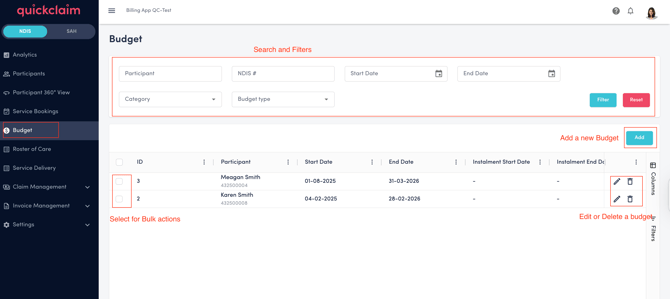
Search and Filters
The following filters allow you to narrow down the list of budgets.
Available filters:
-
Participant – Search by participant name.
-
NDIS # – Filter by participant NDIS number.
-
Start Date – Filter by budget start date.
-
End Date – Filter by budget end date.
-
Category – Filter by budget category.
-
Budget Type – Filter by management type.
Click on the Filter button to apply selected criteria or the Reset button to clear all filters and display all the available budgets.
Adding a New Budget
-
Click the Add button on the Budget page.
-
The Add Budget window will open.
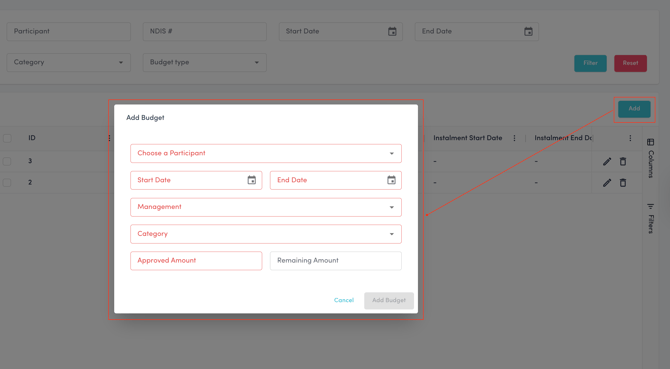
Add Budget Fields
-
Choose a Participant (Required) – Select the participant from the dropdown list. If you don't see a particicpant you will need to add a new participant in the Participant page on quickclaim.
-
Start Date (Required) – enter the budget start date.
-
End Date (Required) – enter the budget end date.
-
Management (Required) – Select management type (Agency / Plan Managed / Self Managed or Other).
-
Category (Required) – Select the support category for the budget you are adding.
-
Approved Amount (Required) – Total approved funding amount for the selected category.
-
Remaining Amount (Read-only) –This is optional. Enter the remaining amount if known.
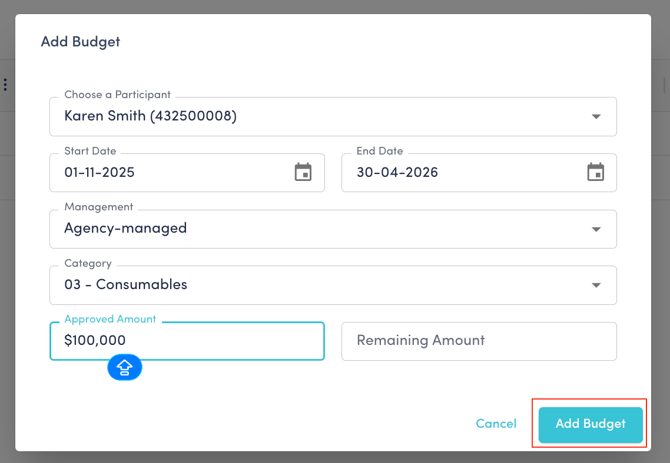
Click on the Add Budget button to save. Click Cancel to exit without saving.
Editing an Existing Budget
-
Locate the budget you would like to edit in the list.
-
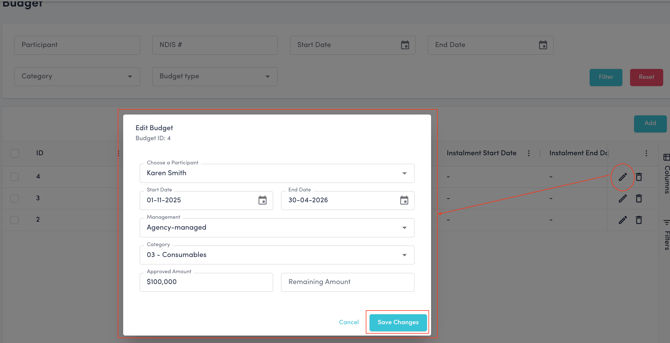
Click the Edit (✏️) icon.
-
Update the required fields.
-
Click Save Changes button to apply changes.
Deleting a Budget
-
Locate the budget you want to delete in the list.
-
Click the Delete (🗑️) icon.
-
Confirm the deletion by clicking on the Delete Button.
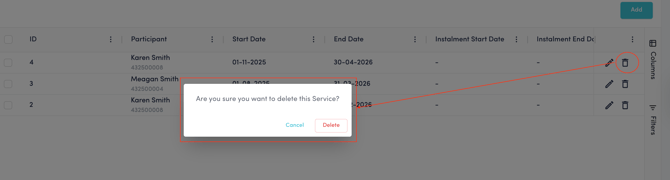
In order to deleted multiple budgets click on the check boxes in each budget row you want to delete and click on the Delete button on top right.
Export selected
-
Select all or multiple budget rows you would like to kexport by clicking on the check box.
- Click on the Export Button.
