.png?width=512&height=100&name=Logo%20(side-by-side).png)
Importing Care Recipients
You can import your own client data (e.g., client IDs from your CRM) to enrich the information provided by Services Australia. In order to enrich the care recipient data, you can use the "Import" functionality in quickclaim.
-
User Fields: Utilize user-defined fields to store additional client attributes not provided by Services Australia (e.g., supervisor, HCP status, address).
To import multiple care recipients at once:
-
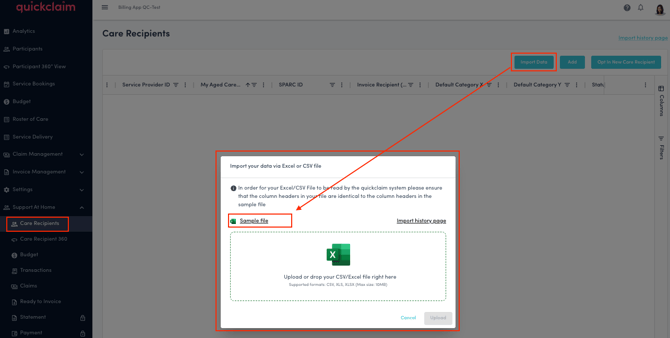
Click Import Data at the top of the page.
-
A modal window will appear — click Download Sample File to download a sample Excel template.
-
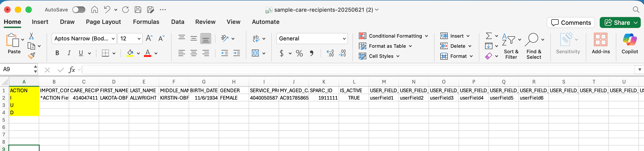
The downloaded file is a template that can be used for adding data to and importing it afterwards.
-
Please add your records to this file. You may copy-paste data from your source to this file following the provided data structure.
Do not rename columns! Do not delete columns!
Please note that if you put a symbol '#' into the first column (named DONOTIMPORT) - then the current row of data will not be imported.
Please note the first column (named ACTION) can only have the following values:
I - for inserting new records.
U - for updating existing records.
D - for deleting existing records.
- Once you have inserted all the records that you would like to import (or update, delete) - proceed to the the uploading your file into the same window as described on the above step 4:
Just drag-and-drop your file into the dedicated area of the window and click the “SUBMIT” button.
At this stage, the quickclaim validation system will check your uploaded data for any obvious inconsistencies and error.
- On the next screen, you should see statistics about the data you have uploaded. In case some records fail the validation check, the system will highlight them, and they will not be imported.
Once uploaded, all imported records will appear in the Care Recipients list.