.png?width=512&height=100&name=Logo%20(side-by-side).png)
Where you’ll see this filter
The Multi-Participant Filter is available on Claim Management(Ready to claim and Recovery page), Invoice Management(Ready to invoice page).
How to filter by multiple participants
Step 1: Open the participant dropdown
-
Locate the Participant filter at the top of the page.
-
Click the dropdown to view the full list of available participants.
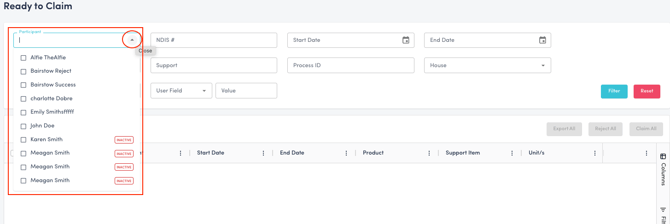
Step 2: Select multiple participants
You can choose participants in two ways:
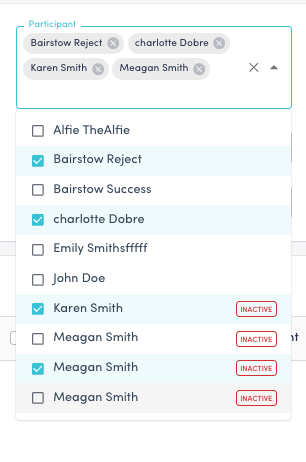
Option A: Select from the full list
-
Scroll through the dropdown list.
-
Click to select one or more participants.
-
Each selected participant will be added to the filter.
Option B: Search by participant name
-
Start typing a participant’s name in the dropdown search field.
-
The list will automatically narrow down to matching names.
-
Select one or more participants from the filtered results.
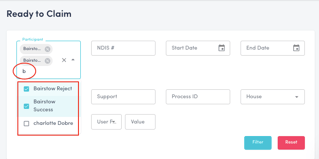
- In order to view the full list again, with the participants still selected, delete the search text, and you can again scroll through the full list.
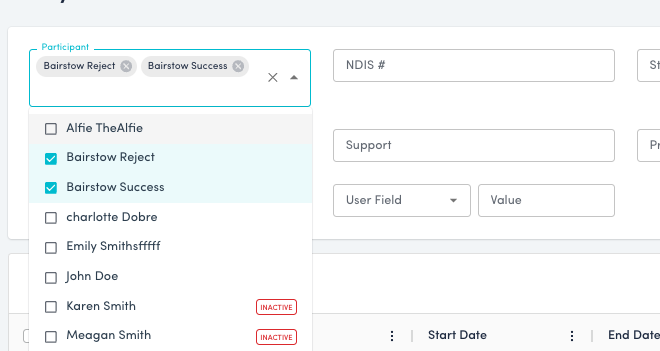
- To select another participant, just enter the additional name in the search bar and select.
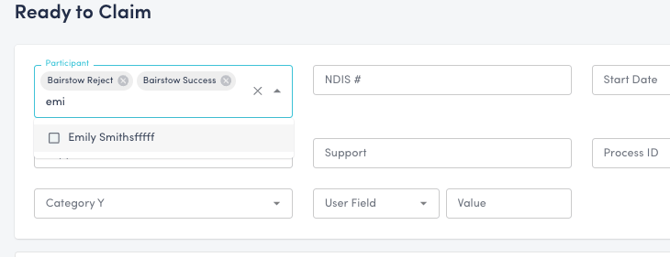
You can continue searching and selecting until all required participants are added.
Step 3: Apply the filter
-
Once participants are selected, apply the filter by clicking on the Filter Button.
-
The list will refresh to show only items related to the selected participants.
After applying the Multi-Participant Filter, you can perform actions on all items in the filtered results at once or on selected items.
Some of the bulk actions include (if relevant to the page):
-
Export All – Export all filtered records
-
Invoice All – Create invoices for all filtered items
-
Claim All – Submit claims for all filtered items
-
Reject All – Reject all filtered items
⚠️ Note: Bulk actions apply only to the currently filtered results. Always review your selected participants before proceeding.