---
title: How to issue invoices?
description: how to issue invoices
---
[Skip to content](https://wiki.quickclaim.io/knowledge/how-to-issue-invoices#main-content)
[More support](https://wiki.quickclaim.io/knowledge/kb-tickets/new?hsLang=en) [Support portal](https://wiki.quickclaim.io/support?hsLang=en)
[.png?width=512&height=100&name=Logo%20(side-by-side).png)](https://quickclaim.com.au/)
- [Existing Tickets](https://wiki.quickclaim.io/tickets-view)
- [Knowledge Base](https://wiki.quickclaim.io/knowledge)
- [PRODA](https://proda.humanservices.gov.au/prodalogin/pages/public/login.jsf)
- [Sign out](https://wiki.quickclaim.io/_hcms/mem/logout)
Open main navigation
Close main navigation
- [Existing Tickets](https://wiki.quickclaim.io/tickets-view)
- [Knowledge Base](https://wiki.quickclaim.io/knowledge)
- [PRODA](https://proda.humanservices.gov.au/prodalogin/pages/public/login.jsf)
- [Sign out](https://wiki.quickclaim.io/_hcms/mem/logout)
- [More support](https://wiki.quickclaim.io/knowledge/kb-tickets/new)
- [Support portal](https://wiki.quickclaim.io/support)
- [Contact us](mailto:support@quickclaim.com.au)
[Contact us](mailto:support@quickclaim.com.au)
How can we help you?
- There are no suggestions because the search field is empty.
1. [Knowledge Base](https://wiki.quickclaim.io/knowledge?hsLang=en)
2. [Support at Home](https://wiki.quickclaim.io/knowledge/support-at-home?hsLang=en)
3. [Ready to Invoice](https://wiki.quickclaim.io/knowledge/support-at-home?hsLang=en#ready-to-invoice)
# How to issue invoices?
## Recommended steps to issue invoices
### Process to Issue Invoices
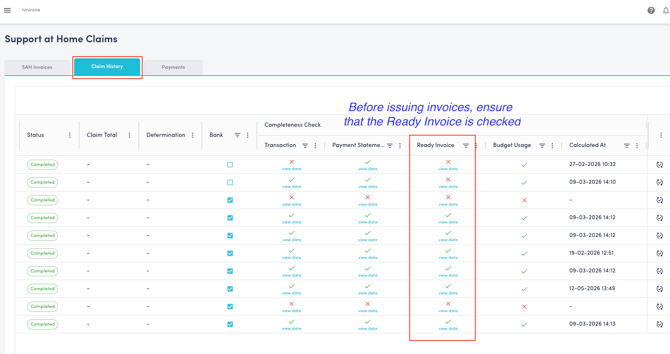
Before issuing invoices, it is very important to perform a **completeness check** on the Support at Home claims\> Claim History Page.
The "Ready Invoice" column must have a green tick before you can issue the invoice. If there is a red cross instead, click on View Data and view the data to investigate where the issue is. **It is important to confirm the data is correct before invoicing.**
#### Step 1 – Review Transactions
1. Open the **Ready to Invoice** page in Support at Home module.
2. Review the list of processed transactions.
3. Confirm the amounts and invoice splits are correct.
4. The invoice recipient can be updated at this stage if needed by clicking on the **Bulk Update** button.
---
#### Step 2 – Invoice all or Invoice Selected
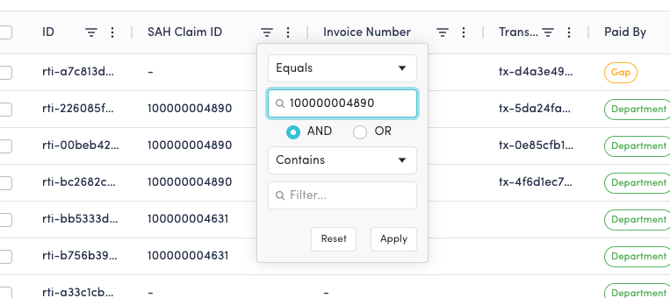
1. It is important to issue invoices claim by claim. In order to do this, filter for a specific SAH Claim ID to filter out the records for that ID.

2. The recommended process would be to do one round of invoice only for "**Department**" and one round of invoice for "**Contributions and Gap Payments**".
The main reason to do this is because Services Australia pays per claim id in bulk. So if all the department invoices are created in 1 batch, the total amount of the batch will be same or close to the payment received from Services Australia which will make reconciling a breeze.
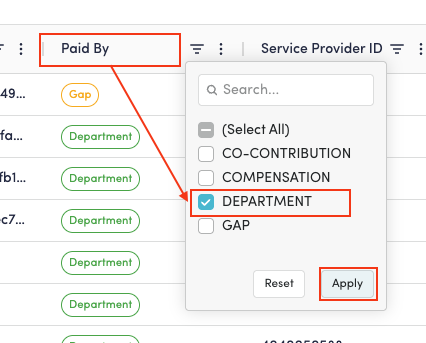
- For this, filter Paid By to Department.
- In the next round you can use the remaining Paid by categories to issue invoices.
**Important Checks:** This is not mandatory; the system will still issue invoices correctly if you click on Invoice All. However, the benefit of doing this is that all the department invoices will be created in 1 batch. This Batch id is visible in the Invoices Page in AR module. If you filter by batch id in the invoices page, it will be easier to reconcile the total amount for department claims.
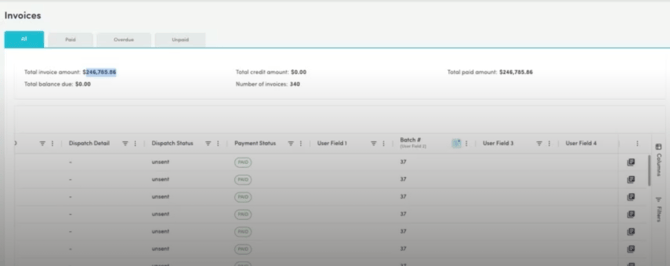
It is important to check that the data matches, the credits are all accounted for.
3. Click **Invoice Selected or Invoice all** button based on your preference.
4. Quickclaim will automatically:
- Generate the required invoices
- Split invoices by payment type
- Send invoices to the finance system
---
#### Step 3 – Monitor Invoice Status
After submission:
- Government invoices can be tracked against Service Australia payments
- Co-contribution invoices can be tracked in the AR module
### Cancellations or Adjustments
If there are cancellations or adjustments in the payment, credit notes are automatically created in AR module.
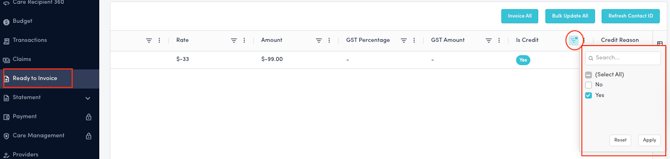
To filter out the credit notes, under Ready to Invoice, find the "is Credit?" column and on the filter check yes. This will filter all the credit notes with negative amount that was created in AR module.
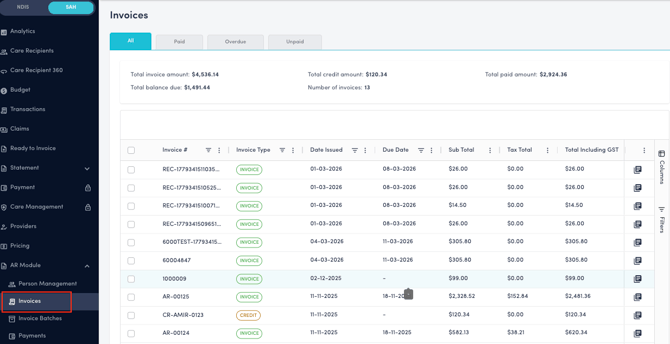
In the invoices page under AR module, it will contain all the invoices as well as the credit notes.
- [Getting Started](https://wiki.quickclaim.io/knowledge/getting-started?hsLang=en#main-content)
- [NDIS APIs](https://wiki.quickclaim.io/knowledge/getting-started?hsLang=en#ndis-apis)
- [Aged Care Web Services](https://wiki.quickclaim.io/knowledge/getting-started?hsLang=en#aged-care-web-services)
- [Accounts Receivable (AR) Module](https://wiki.quickclaim.io/knowledge/accounts-receivable-ar-module?hsLang=en)
- [NDIS](https://wiki.quickclaim.io/knowledge/ndis?hsLang=en#main-content)
- [Participants](https://wiki.quickclaim.io/knowledge/ndis?hsLang=en#participants)
- [Service Bookings](https://wiki.quickclaim.io/knowledge/ndis?hsLang=en#service-bookings)
- [Budget](https://wiki.quickclaim.io/knowledge/ndis?hsLang=en#budget)
- [Roster of Care](https://wiki.quickclaim.io/knowledge/ndis?hsLang=en#roster-of-care)
- [Service Delivery](https://wiki.quickclaim.io/knowledge/ndis?hsLang=en#service-delivery)
- [Claiming Workflow](https://wiki.quickclaim.io/knowledge/ndis?hsLang=en#claiming-workflow)
- [Invoicing Workflow](https://wiki.quickclaim.io/knowledge/ndis?hsLang=en#invoicing-workflow)
- [Support at Home](https://wiki.quickclaim.io/knowledge/support-at-home?hsLang=en#main-content)
- [Care Recipients](https://wiki.quickclaim.io/knowledge/support-at-home?hsLang=en#care-recipients)
- [Care Recipient 360](https://wiki.quickclaim.io/knowledge/support-at-home?hsLang=en#care-recipient-360)
- [Budget](https://wiki.quickclaim.io/knowledge/support-at-home?hsLang=en#budget)
- [Transactions](https://wiki.quickclaim.io/knowledge/support-at-home?hsLang=en#transactions)
- [Claims](https://wiki.quickclaim.io/knowledge/support-at-home?hsLang=en#claims)
- [Ready to Invoice](https://wiki.quickclaim.io/knowledge/support-at-home?hsLang=en#ready-to-invoice)
- [Statements](https://wiki.quickclaim.io/knowledge/support-at-home?hsLang=en#statements)
- [Tableau Analytics](https://wiki.quickclaim.io/knowledge/tableau-analytics?hsLang=en)
- [Settings](https://wiki.quickclaim.io/knowledge/settings?hsLang=en#main-content)
- [Registrations](https://wiki.quickclaim.io/knowledge/settings?hsLang=en#registrations)
- [Notifications](https://wiki.quickclaim.io/knowledge/settings?hsLang=en#notifications)
- [Releases](https://wiki.quickclaim.io/knowledge/releases?hsLang=en)
- [For Developers](https://wiki.quickclaim.io/knowledge/for-developers?hsLang=en#main-content)
- [API Getting Started](https://wiki.quickclaim.io/knowledge/for-developers?hsLang=en#api-getting-started)
- [Sandbox and Authentication](https://wiki.quickclaim.io/knowledge/for-developers?hsLang=en#sandbox-and-authentication)
- [Public API Reference](https://wiki.quickclaim.io/knowledge/for-developers?hsLang=en#public-api-reference)
- [Budget APIs](https://wiki.quickclaim.io/knowledge/for-developers?hsLang=en#budget-apis)
- [Errors and Limits](https://wiki.quickclaim.io/knowledge/for-developers?hsLang=en#errors-and-limits)
- [NDIS Rejection Codes](https://wiki.quickclaim.io/knowledge/for-developers?hsLang=en#ndis-rejection-codes)
- [Link](https://wiki.quickclaim.io/knowledge/link?hsLang=en#main-content)
- [Invoices](https://wiki.quickclaim.io/knowledge/link?hsLang=en#invoices)
- [Provider Remittance Advice](https://wiki.quickclaim.io/knowledge/link?hsLang=en#provider-remittance-advice)
- [Settings](https://wiki.quickclaim.io/knowledge/link?hsLang=en#settings)
- [Managing Payments](https://wiki.quickclaim.io/knowledge/link?hsLang=en#managing-payments)
[.png?width=113&height=24&name=quickclaim%20logo%20(high-res).png "Chill listening crop-3")](https://quickclaim.com.au)
[mailto:email@email.com](mailto:email@email.com)
Copyright © 2026, quickclaim