---
title: How to regenerate a statement PDF when name or address is changed
description: regenerate statement pdf on name changes
---
[Skip to content](https://wiki.quickclaim.io/knowledge/how-to-regenerate-a-statement-pdf-when-name-or-address-is-changed#main-content)
[More support](https://wiki.quickclaim.io/knowledge/kb-tickets/new?hsLang=en) [Support portal](https://wiki.quickclaim.io/support?hsLang=en)
[.png?width=512&height=100&name=Logo%20(side-by-side).png)](https://quickclaim.com.au/)
- [Existing Tickets](https://wiki.quickclaim.io/tickets-view)
- [Knowledge Base](https://wiki.quickclaim.io/knowledge)
- [PRODA](https://proda.humanservices.gov.au/prodalogin/pages/public/login.jsf)
- [Sign out](https://wiki.quickclaim.io/_hcms/mem/logout)
Open main navigation
Close main navigation
- [Existing Tickets](https://wiki.quickclaim.io/tickets-view)
- [Knowledge Base](https://wiki.quickclaim.io/knowledge)
- [PRODA](https://proda.humanservices.gov.au/prodalogin/pages/public/login.jsf)
- [Sign out](https://wiki.quickclaim.io/_hcms/mem/logout)
- [More support](https://wiki.quickclaim.io/knowledge/kb-tickets/new)
- [Support portal](https://wiki.quickclaim.io/support)
- [Contact us](mailto:support@quickclaim.com.au)
[Contact us](mailto:support@quickclaim.com.au)
How can we help you?
- There are no suggestions because the search field is empty.
1. [Knowledge Base](https://wiki.quickclaim.io/knowledge?hsLang=en)
2. [Support at Home](https://wiki.quickclaim.io/knowledge/support-at-home?hsLang=en)
3. [Statements](https://wiki.quickclaim.io/knowledge/support-at-home?hsLang=en#statements)
# How to regenerate a statement PDF when name or address is changed
## Instructions on how to regenerate a statement PDF when someone's name or address is changed. This is both on bulk and individual.
#### Regenerating Statement PDFs After Updating Name or Address
When a care recipient’s name or address is updated, the existing statement PDFs will not automatically reflect the changes. You must regenerate the PDFs to apply the updated details.
### Step 1: Update Care Recipient Details 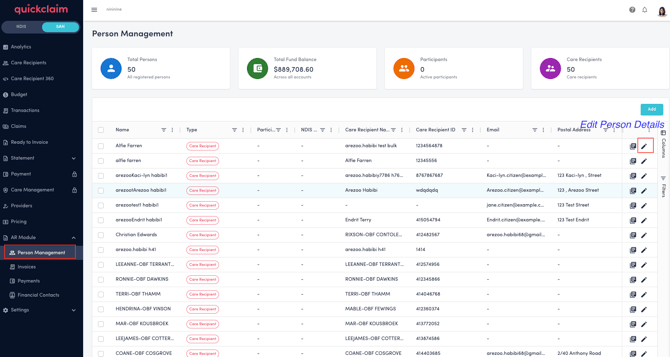
1. Go to the SAH\> AR Module\> **Person Management** page.
2. Search and Edit the relevant care recipient by clicking on the **edit** Icon.
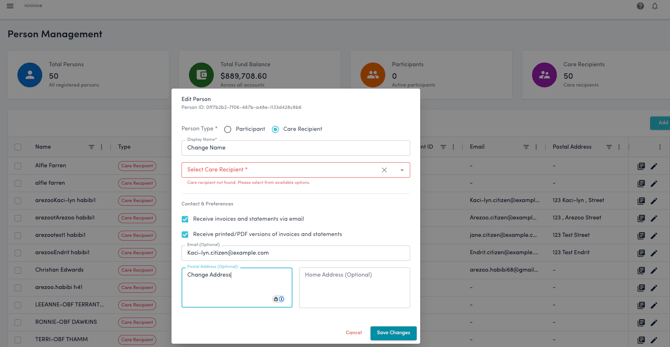
3. Update the **name and/or address** as required.
4. Save the changes.
---
#### Option 1: Regenerate Statements in Bulk
Use this when multiple care recipients have updated details.
1. Navigate to:
**SAH\> Statement → Monthly (Bulk)**
2. Locate the relevant **batch**.
3. Click **Regenerate PDFs**.
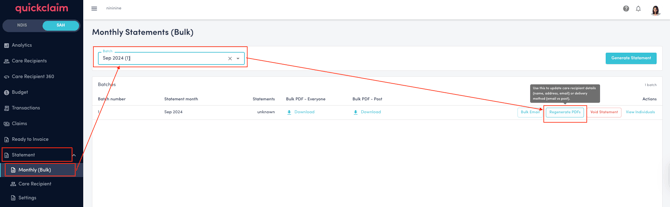
This will regenerate all statements in the batch, and the updated name/address will be reflected in the new PDFs.
---
#### Option 2: Regenerate Statements Individually
Use this when updating a single care recipient.
1. Navigate to:
**Statements → Care Recipient → Care Recipient Statements**
2. Select the specific **care recipient and/or the Batch** to find the relevant statement.
3. Click **Regenerate PDF**.
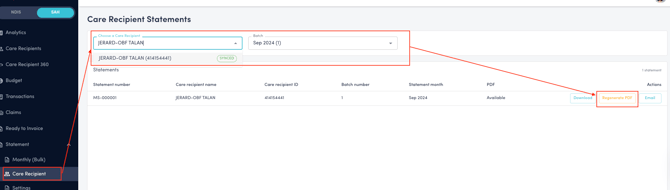
The regenerated PDF will now include the updated name/address.
---
#### Key Notes
- Always update details in the **Person page first** before regenerating PDFs.
- Regenerating is required for changes to appear—existing PDFs will not update automatically.
- Bulk regeneration is recommended when multiple records are updated.
- [Getting Started](https://wiki.quickclaim.io/knowledge/getting-started?hsLang=en#main-content)
- [NDIS APIs](https://wiki.quickclaim.io/knowledge/getting-started?hsLang=en#ndis-apis)
- [Aged Care Web Services](https://wiki.quickclaim.io/knowledge/getting-started?hsLang=en#aged-care-web-services)
- [Accounts Receivable (AR) Module](https://wiki.quickclaim.io/knowledge/accounts-receivable-ar-module?hsLang=en)
- [NDIS](https://wiki.quickclaim.io/knowledge/ndis?hsLang=en#main-content)
- [Participants](https://wiki.quickclaim.io/knowledge/ndis?hsLang=en#participants)
- [Service Bookings](https://wiki.quickclaim.io/knowledge/ndis?hsLang=en#service-bookings)
- [Budget](https://wiki.quickclaim.io/knowledge/ndis?hsLang=en#budget)
- [Roster of Care](https://wiki.quickclaim.io/knowledge/ndis?hsLang=en#roster-of-care)
- [Service Delivery](https://wiki.quickclaim.io/knowledge/ndis?hsLang=en#service-delivery)
- [Claiming Workflow](https://wiki.quickclaim.io/knowledge/ndis?hsLang=en#claiming-workflow)
- [Invoicing Workflow](https://wiki.quickclaim.io/knowledge/ndis?hsLang=en#invoicing-workflow)
- [Support at Home](https://wiki.quickclaim.io/knowledge/support-at-home?hsLang=en#main-content)
- [Care Recipients](https://wiki.quickclaim.io/knowledge/support-at-home?hsLang=en#care-recipients)
- [Care Recipient 360](https://wiki.quickclaim.io/knowledge/support-at-home?hsLang=en#care-recipient-360)
- [Budget](https://wiki.quickclaim.io/knowledge/support-at-home?hsLang=en#budget)
- [Transactions](https://wiki.quickclaim.io/knowledge/support-at-home?hsLang=en#transactions)
- [Claims](https://wiki.quickclaim.io/knowledge/support-at-home?hsLang=en#claims)
- [Ready to Invoice](https://wiki.quickclaim.io/knowledge/support-at-home?hsLang=en#ready-to-invoice)
- [Statements](https://wiki.quickclaim.io/knowledge/support-at-home?hsLang=en#statements)
- [Tableau Analytics](https://wiki.quickclaim.io/knowledge/tableau-analytics?hsLang=en)
- [Settings](https://wiki.quickclaim.io/knowledge/settings?hsLang=en#main-content)
- [Registrations](https://wiki.quickclaim.io/knowledge/settings?hsLang=en#registrations)
- [Notifications](https://wiki.quickclaim.io/knowledge/settings?hsLang=en#notifications)
- [Releases](https://wiki.quickclaim.io/knowledge/releases?hsLang=en)
- [For Developers](https://wiki.quickclaim.io/knowledge/for-developers?hsLang=en#main-content)
- [API Getting Started](https://wiki.quickclaim.io/knowledge/for-developers?hsLang=en#api-getting-started)
- [Sandbox and Authentication](https://wiki.quickclaim.io/knowledge/for-developers?hsLang=en#sandbox-and-authentication)
- [Public API Reference](https://wiki.quickclaim.io/knowledge/for-developers?hsLang=en#public-api-reference)
- [Budget APIs](https://wiki.quickclaim.io/knowledge/for-developers?hsLang=en#budget-apis)
- [Errors and Limits](https://wiki.quickclaim.io/knowledge/for-developers?hsLang=en#errors-and-limits)
- [NDIS Rejection Codes](https://wiki.quickclaim.io/knowledge/for-developers?hsLang=en#ndis-rejection-codes)
- [Link](https://wiki.quickclaim.io/knowledge/link?hsLang=en#main-content)
- [Invoices](https://wiki.quickclaim.io/knowledge/link?hsLang=en#invoices)
- [Provider Remittance Advice](https://wiki.quickclaim.io/knowledge/link?hsLang=en#provider-remittance-advice)
- [Settings](https://wiki.quickclaim.io/knowledge/link?hsLang=en#settings)
- [Managing Payments](https://wiki.quickclaim.io/knowledge/link?hsLang=en#managing-payments)
[.png?width=113&height=24&name=quickclaim%20logo%20(high-res).png "Chill listening crop-3")](https://quickclaim.com.au)
[mailto:email@email.com](mailto:email@email.com)
Copyright © 2026, quickclaim