.png?width=512&height=100&name=Logo%20(side-by-side).png)
Open an invoice from the Invoices page by selecting the value in the System ID column. That value starts with inv_. The breadcrumb at the top is My invoices / System ID. Select My invoices to return to the list.
Header
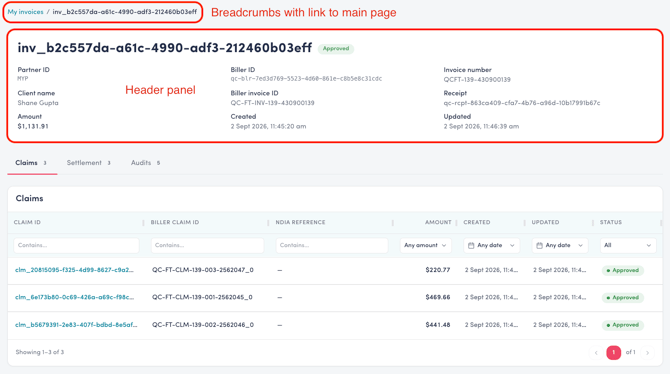
| Item |
Possible value or meaning |
| Status | Approved, Cancelled, or Rejected. |
| Partner ID | The partner that sent the invoice to quickclaim Link, such as MYP. |
| Biller ID | This organisation's identifier in quickclaim Link. It starts with qc-blr-. The same identifier is on the API Keys page. |
| Invoice number | The invoice number. On the Invoices table this is the Invoice # column. |
| Client name | The client on the invoice. |
| Biller invoice ID | quickclaim's internal identifier for the invoice. It is unique for every invoice. Share it with quickclaim support when asked, so support can identify the record. |
| Receipt | quickclaim's identifier for the request that created the invoice. It starts with qc-rcpt-. Share it with quickclaim support when asked. |
| Amount | The invoice total. |
| Created | When the invoice was created. |
| Updated | When the invoice was last updated. |
Claims
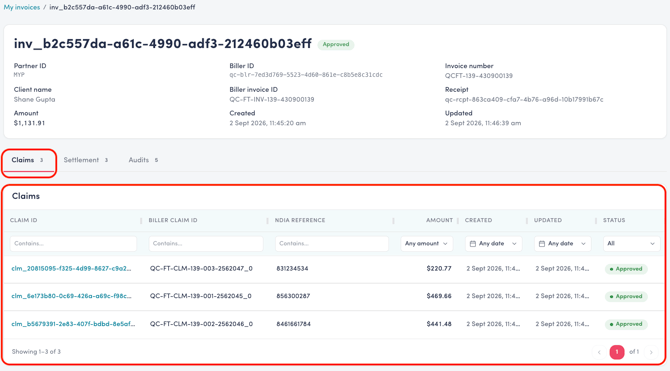
The Claims tab lists the claims on this invoice. The number on the tab is the count. Contains, amount, and date filters work the same way as on the Invoices table.
| Column | What it shows |
|---|---|
| Claim ID | Link's identifier for the claim. It starts with clm_. Select it to open the claim. |
| Biller claim ID | The claim identifier supplied with the invoice. |
| NDIA reference | The NDIA payment request number, when the NDIA has assigned one. A dash means it is not on the record yet. |
| Amount | The claim amount. |
| Created | When the claim was created. |
| Updated | When the claim was last updated. |
Settlement
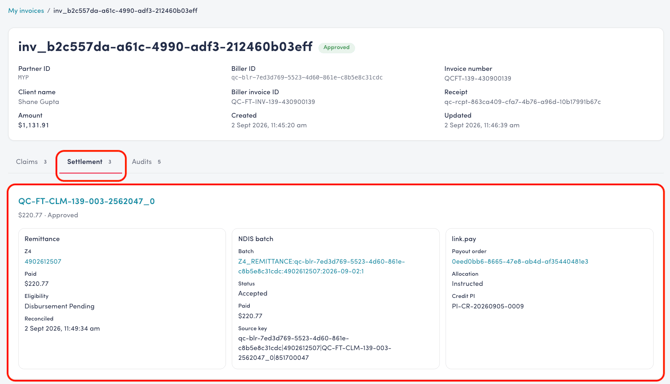
The Settlement tab shows how each claim on the invoice was paid. There is one section for each claim. The heading is the Biller claim ID, with the claim amount and status underneath. Select the Biller claim ID to open the claim.
Each section has three parts.
| Part | What it shows |
|---|---|
| Remittance | The NDIA remittance for this claim. The type (for example Z4) is shown above the remittance number. The number opens that remittance under NDIA Remittance. The card also shows the amount paid, eligibility, and when it was reconciled. |
| NDIS batch | The batch this claim was included in, the batch status, the amount paid, and the source key. The source key is an internal reference. Share it with quickclaim support when asked. |
| link.pay | The payout to the provider. |
To see whether a provider has been paid:
-
Open the invoice and select Settlement.
-
Under link.pay, select the payout order.
-
The payment order shows when it was created. Funds are withdrawn at 7.30pm on the same business day, or the following day if the payment order is created after that time. The provider is paid 2 business days after the withdrawal.
The payment order shows the total, and how much is paid, held, returned to the plan manager, or in flight. Allocations lists each provider line. You can filter those lines by Pending, Held, Returned to PM, Instructed, or Paid. A line can also show Failed. Payouts lists the payment instructions, including the provider and a masked bank reference.
To hold or release a payment allocation, see Holding and Releasing Payments.
The remittance number on the Settlement tab opens the NDIA remittance. Provider remittance advice is under Providers Remittance Advice in the left menu.
Audits
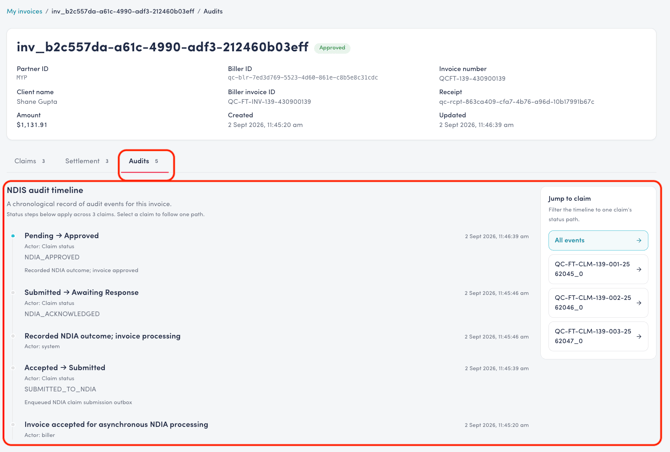
The Audits tab is the NDIS audit timeline for this invoice. It is a chronological record of what happened to the invoice and its claims, newest first. Each event shows the status change, the time, and who recorded it, such as the biller, the system, or claim status.
Use Jump to claim to limit the timeline to one claim. All events shows the whole invoice.