
Overview
The Dashboard is the first page you see in Link. It answers two questions at a glance: is anything waiting on me? and what is the status of my invoices?
It has two sections, top to bottom:
- Needs attention: tiles for items that need action in quickclaim, such as failed claims or held payments.
- Invoice status: how invoices created in a date range have moved from submission to the NDIA through to payment to providers, with a daily breakdown underneath.
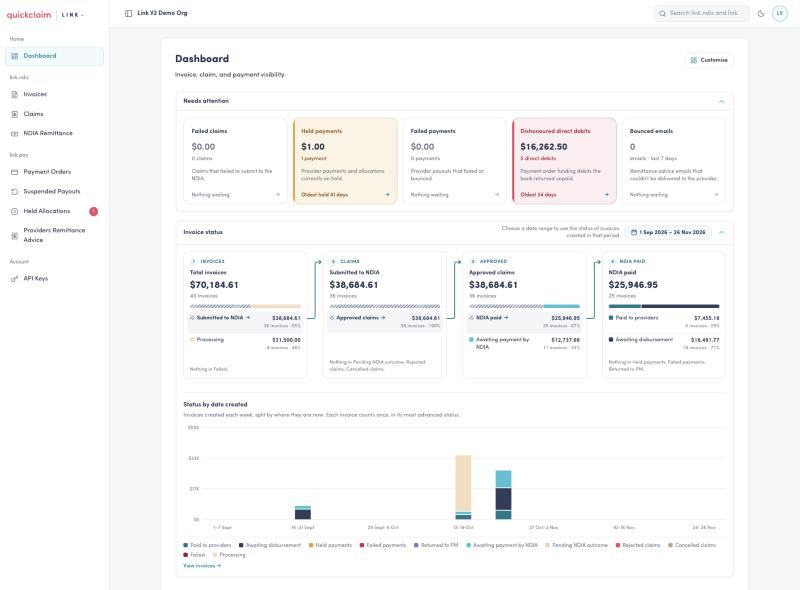
Each figure links to the page where you can see and act on the underlying invoices, claims or payments.
Needs attention
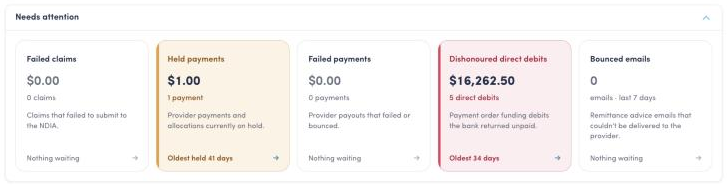
Needs attention lists everything that is waiting on you. If every tile reads Nothing waiting, there is nothing to action.
Each tile shows a total in bold and a count underneath. A tile with something in it is shaded (red for a failure, amber for something on hold) and shows how long the oldest item has been waiting. Click anywhere on a tile to open the matching list, already filtered.
|
Tile |
What it counts |
What to do |
|---|---|---|
|
Failed claims |
Claims that could not be submitted to the NDIA. |
Open the list, check why each claim failed, correct it and resubmit. Until then the NDIA has not received the claim. |
|
Held payments |
Provider payments and allocations that are on hold and have not been paid out. |
Open Held Allocations and review each item. The footer shows how long the oldest one has been held. |
|
Failed payments |
Payouts to providers that failed or bounced, for example because of incorrect bank details. |
Open Suspended Payouts, check the provider's bank details and arrange for the payment to be made again. |
|
Dishonoured direct debits |
Direct debits that quickclaim used to fund a payment order, which your bank returned unpaid. |
Check the funding account has enough money. Providers on that payment order can't be paid until it is funded. |
|
Bounced emails |
Remittance advice emails that couldn't be delivered to the provider in the last 7 days. |
Check and correct the provider's email address. The payment itself was still made; only the email didn't arrive. |
Bounced emails is a count of emails, not dollars, and only looks back 7 days, so older bounces drop off the tile automatically.
Invoice status
Invoice status follows the invoices created in the date range you choose and shows how far each one has got, from submission to the NDIA through to payment to the provider.
Choosing a date range
Use the date picker at the top right of the section. Everything in Invoice status, including the chart underneath, is limited to invoices created in that period. It does not matter when they were approved or paid. To review last month's invoices, pick last month; to see what is still outstanding from a busy week, pick that week.
The four stages
The four panels read left to right, like a waterfall. Each panel's headline is the total of the stage, and the rows underneath show where that money is now. The highlighted row in each panel (marked →) is the part that carries on to the next panel; the connecting line shows where it goes.
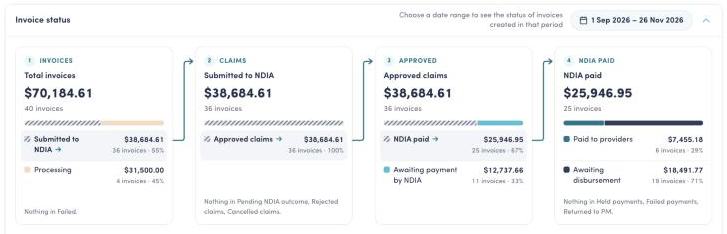
- Submitted to NDIA carries on to stage 2.
- Processing: not yet sent to the NDIA.
- Failed: could not be submitted (see Failed claims in Needs attention).
- Approved claims carries on to stage 3.
- Pending NDIA outcome: the NDIA has not decided yet.
- Rejected claims: the NDIA declined them. These are resolved with the NDIA (for example in My Provider Portal), not in quickclaim.
- Cancelled claims: cancelled after submission.
- NDIA paid carries on to stage 4. The NDIA has paid these and issued a remittance (Z4) number.
- Awaiting payment by NDIA: approved, but the NDIA has not paid yet.
- Paid to providers: paid out to the provider.
- Awaiting disbursement: the NDIA has paid, but the provider payment has not gone out yet.
- Held payments, Failed payments: see Needs attention.
- Returned to PM: returned to you instead of being paid to the provider.
Every row shows the dollar amount, the number of invoices and its share of the panel's total. Statuses with nothing in them are listed in a short note at the bottom of the panel instead of as empty rows. Click a row to open the matching invoices.
What you can conclude
- Approved does not mean paid. Stage 3 shows how much the NDIA has approved but not yet paid. If a provider asks why they haven't been paid, check whether their invoice is in Awaiting payment by NDIA (waiting on the NDIA) or Awaiting disbursement (the NDIA has paid and the provider payment is on its way).
- Large Pending NDIA outcome or Awaiting payment by NDIA amounts in an older date range point to claims the NDIA is slow to process; follow up with the NDIA.
- Rejected and Cancelled claims show how much of the period's invoicing won't be paid as claimed.
Status by date created
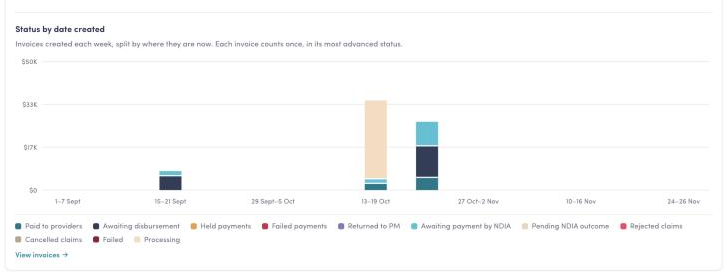
Status by date created shows the same invoices as the four stages, one column per day (or per week for longer date ranges), so you can see which days still have money outstanding. It uses the same date range as Invoice status.
How to read it
- Column height is the total value of invoices created that day (or week).
- Each colour is the status those invoices are in now. An invoice is counted once, in the furthest status it has reached. For example, an invoice paid to the provider counts only as Paid to providers, not also as approved or NDIA paid.
- The colours match the rows in the four stage panels, and the key under the chart names each one.
- Hover over (or tab to) a column to see that day's total and its breakdown by status.
What you can conclude
- Older days should be mostly Paid to providers. An older column with a large Awaiting payment by NDIA or Pending NDIA outcome segment means the NDIA has not finished with those claims.
- Recent days are usually still in progress. It is normal for the last few days to show Pending NDIA outcome, Awaiting payment by NDIA or Awaiting disbursement.
- A gap or a very short column usually means fewer invoices were created that day, such as on weekends and public holidays.
- Problem colours on any day (rejected, failed, held) point to invoices to investigate. Click View invoices to open the Invoices list.
Customising the Dashboard
Click Customise at the top right of the Dashboard to choose which sections are shown and in what order. Use it to hide a section you don't need or move the one you check most to the top.
F.A.Q.s
A provider says they haven't been paid, but the claim is approved. Why? Approved means the NDIA has accepted the claim, not that it has paid. Find the invoice in Invoice status: Awaiting payment by NDIA means the NDIA hasn't paid yet; Awaiting disbursement means the NDIA has paid and the provider payment is on its way; Held payments or Failed payments mean it needs your attention.
Why don't the Invoice status totals match Needs attention? Invoice status only includes invoices created in the selected date range. Needs attention shows everything currently waiting, whenever the invoice was created.
Why has a tile cleared even though I didn't do anything? Bounced emails only counts the last 7 days, so older bounces drop off. Other tiles clear once the item is resolved.
Why don't the amounts match my bank statement for a day? The Dashboard groups invoices by the date they were created. Your bank statement shows money on the date the NDIA paid or quickclaim withdrew funds for a payment order, which is usually days later. Use the NDIA Remittance page to match bank transactions.
Why is Rejected claims included if I can't fix it in quickclaim? It shows how much of the period's invoicing the NDIA declined. Rejected claims are followed up with the NDIA, so they are not listed in Needs attention.