.png?width=512&height=100&name=Logo%20(side-by-side).png)
The Invoices page lists every invoice in quickclaim Link. Open it from Invoices in the left menu, or go to https://link.quickclaim.io/invoices.
The table shows 20 invoices at a time. Reload list refreshes the table. Select the System ID to open that invoice.
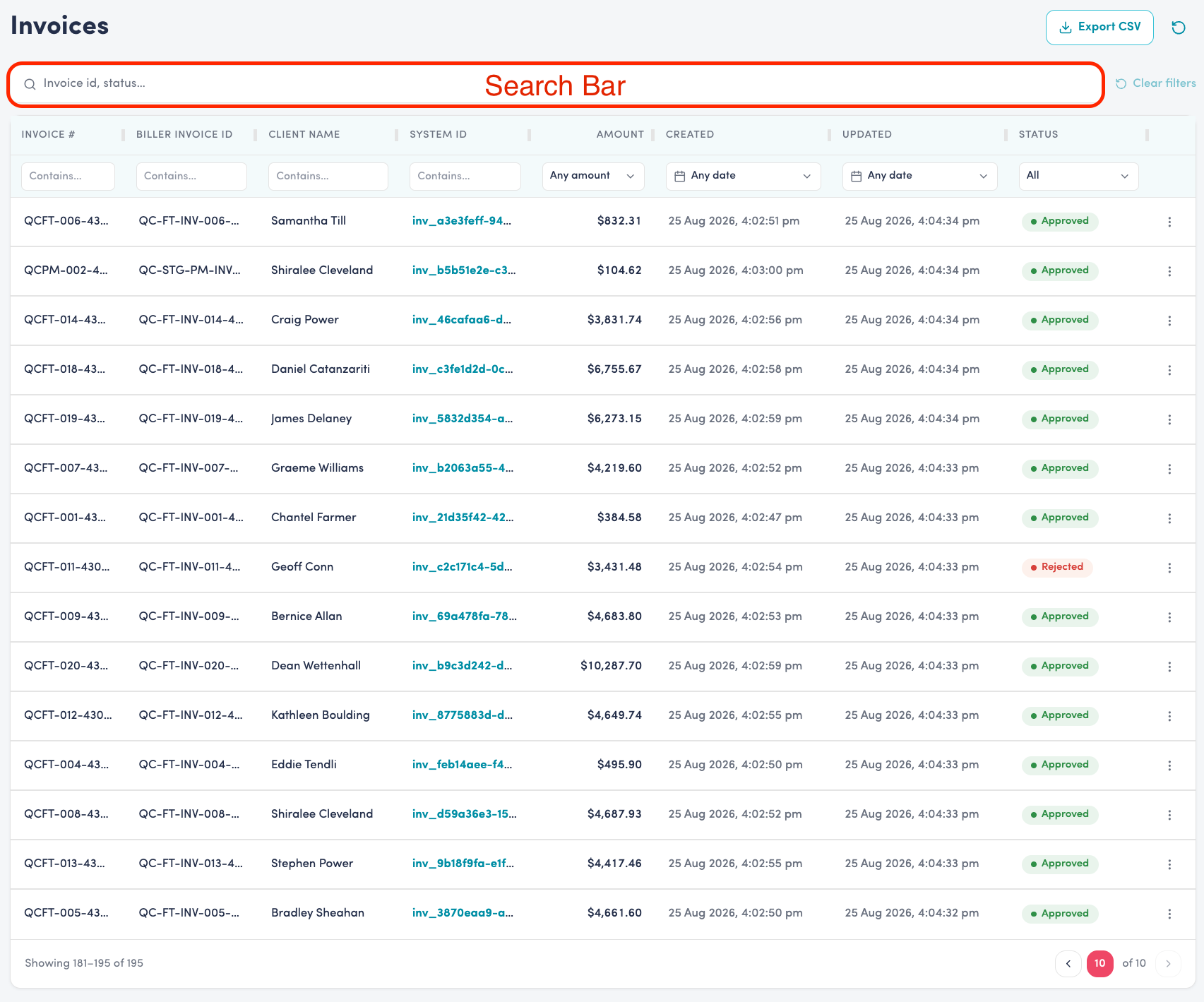
Columns in the Invoice table
| Column Heading | What it means |
| Invoice # | This is the invoice number recorded on your provider's invoice (it's not unique, so it might turn up unexpected results when you use it as a search criterion) |
| Biller invoice ID | quickclaim's internal identifier for the invoice. It is unique for every invoice. Share it with quickclaim support when asked, so support can identify the record. |
| Client name | The NDIS Participant on the invoice. |
| System ID | Link's identifier for the invoice. Select it to open the invoice. If an invoice number or client name does not find the record, send this System ID to quickclaim support. |
| Amount | The invoice total. |
| Created | When the invoice was created. |
| Updated | When the status of the invoice and its related claims and payouts was last updated. |
| Status | Processing (awaiting a response from the NDIA), Approved , Cancelled, or Rejected (this status will be displayed even if only one claim has been rejected). |
Finding an invoice
1. Search in the top-right search bar (in the corner of the page)
The field labelled Search link.ndis and link.pay covers invoices, claims, remittance, and payment orders. An invoice number returns a result labelled Invoice, together with its System ID. A client name does not match here.
2. Search above the table
The field labelled Invoice id, status applies when you press Enter.
A System ID, including the inv_ prefix, finds that invoice.
A status such as Approved limits the list to that status.
An invoice number or a client name does not match here.
Clear filters removes this search.
3. Column filters
Contains on Invoice #, Biller invoice ID, Client name, and System ID.
A minimum and maximum on Amount.
A date range on Created and on Updated.
Status is a list you can search. Use Select All or Reset.
Clear filters removes the table search and the column filters together.
Export CSV
Export CSV is at the top right of the table. It downloads every invoice that matches the current filter. If no filter is applied, it downloads the whole table. Claims and Payment Orders use the same control.
Filter the table first, then export. Export CSV is unavailable when the filter matches nothing.