---
title: Service Delivery management in quickclaim
description: This is where all the standard weekly claims populate each Monday, using the items in the Roster of Care module as a template.
---
[Skip to content](https://wiki.quickclaim.io/knowledge/service-delivery#main-content)
[More support](https://wiki.quickclaim.io/knowledge/kb-tickets/new?hsLang=en) [Support portal](https://wiki.quickclaim.io/support?hsLang=en)
[.png?width=512&height=100&name=Logo%20(side-by-side).png)](https://quickclaim.com.au/)
- [Existing Tickets](https://wiki.quickclaim.io/tickets-view)
- [Knowledge Base](https://wiki.quickclaim.io/knowledge)
- [PRODA](https://proda.humanservices.gov.au/prodalogin/pages/public/login.jsf)
- [Sign out](https://wiki.quickclaim.io/_hcms/mem/logout)
Open main navigation
Close main navigation
- [Existing Tickets](https://wiki.quickclaim.io/tickets-view)
- [Knowledge Base](https://wiki.quickclaim.io/knowledge)
- [PRODA](https://proda.humanservices.gov.au/prodalogin/pages/public/login.jsf)
- [Sign out](https://wiki.quickclaim.io/_hcms/mem/logout)
- [More support](https://wiki.quickclaim.io/knowledge/kb-tickets/new)
- [Support portal](https://wiki.quickclaim.io/support)
- [Contact us](mailto:support@quickclaim.com.au)
[Contact us](mailto:support@quickclaim.com.au)
How can we help you?
- There are no suggestions because the search field is empty.
1. [Knowledge Base](https://wiki.quickclaim.io/knowledge?hsLang=en)
2. [NDIS](https://wiki.quickclaim.io/knowledge/ndis?hsLang=en)
3. [Service Delivery](https://wiki.quickclaim.io/knowledge/ndis?hsLang=en#service-delivery)
# Service Delivery management in quickclaim
### **Accessing the Service Delivery Page**
1. Log in to **quickclaim**.
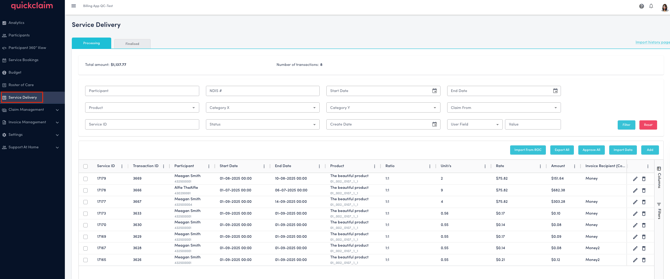
2. From the left-hand side menu, navigate to the **Service Delivery** page.
3. On this page, you can add, import, export, approve, delete, and manage service delivery records.
### **Adding records to Service Delivery**
The **Service Delivery Module** in quickclaim allows users to manage service delivery records efficiently. Records in this module can be populated and processed in 4 ways:
1. **Automatic Import from ROC:**
All the standard weekly claims populate each Monday, using the items in the Roster of Care (ROC) module automatically.
2. **File Import:**
Users can import records manually via a CSV or Excel file.
3. **Integration with Customer CRM :**
Approved records from the customer’s CRM can be pushed into quickclaim via API.
4. **Manual Entry:**
Users can add individual records directly through the **Add** button in the UI.
#### Automatic Import from ROC:
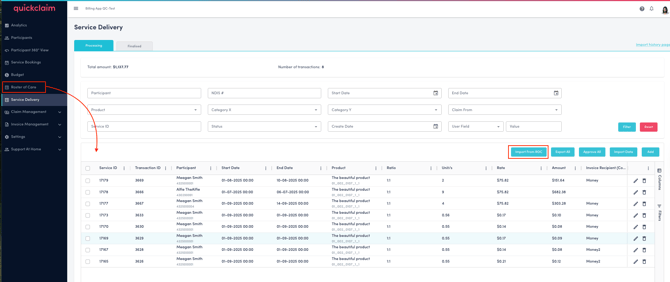
This is where all the standard weekly claims populate each Monday, using the items in the **Roster of Care (ROC)** module as a template. Records can also be imported from ROC by clicking on the action button.
#### Importing Service Delivery via File Upload
You can also import service delivery data in bulk using an Excel or CSV file.
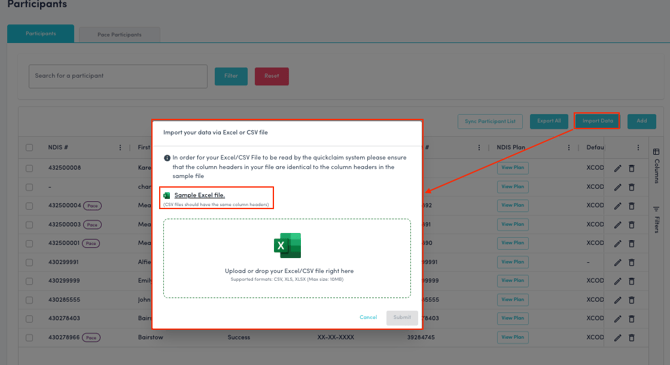
1. Click the **Import Data** button (blue button at the top).
2. Download the **sample Excel file**.
3. Enter your service delivery information in the same format as the sample file.
- The **column headers must match exactly** with those in the sample file for quickclaim to read the data correctly.
- There is a set of validation checks that will be performed on each row that is being inserted or updated. Here is a summary of validation checks for the import file, along with the error messages generated by the system when issues are found: [Validation checks for import file](https://wiki.quickclaim.io/knowledge/service-delivery-import-file-validation?hsLang=en)
4. Drag and drop or upload your completed file.
5. Click **Submit** to upload or **Cancel** to discard.
Both **Excel (.xlsx)** and **CSV (.csv)** files are accepted.
##### **Preparing the import file**

To import multiple service delivery records at once into **quickclaim**, you can use the provided **Service Delivery Import File (Excel or CSV format) as above**.
This file allows you to insert, update, or delete multiple service delivery entries in bulk.
---
###### **1. Structure of the Import File**
The import file includes the following columns under the **“Import Data”** tab. Each column corresponds to a specific data field in **quickclaim**.
| Column Name | Description | Mandatory | Notes |
| --- | --- | --- | --- |
| DONOTIMPORT | Used to make a row invisible during import. If the cell contains #, the row will be ignored. | No | Helps temporarily skip rows. |
| ACTION | Specifies what to do with the record: I = Insert, U = Update, D = Delete. | Yes | Must be filled for all operations. |
| SERVICE\_ID | The unique service delivery ID in quickclaim from service delivery page. | Yes (for Update and Delete only) | Not required for new (Insert) records. |
| NDIS\_NUMBER | The participant’s NDIS number(NDIS\_NUMBER) from the participant’s tab. | Yes | Listed in the Participants tab. |
| PARTICIPANT\_CLIENT\_NUMBER | Enter CLIENT\_NUMBER from participants tab. | Yes | Listed in the Participants tab. If valid NDIS number is provided, this may be ignored. |
| SERVICE\_FROM | Service start date and time. Format: YYYY-MM-DD HH:mm. | Yes | Enter the start date. |
| SERVICE\_TO | Service end date and time. Format: YYYY-MM-DD HH:mm. | Yes | Enter the end date. |
| PRODUCT\_NAME | The name of the product used for this service. Enter PRODUCT from Products tab. | Yes | Must match with the product listed in the Products tab. |
| SUPPORT\_ITEM | NDIS support item number. Enter SUPPORT\_ITEM from Products tab. | No | - |
| RATIO | Number of staff to number of participant ratio. | No | Defaults to 1:1 if not specified. |
| UNIT | Number of service units delivered. | Yes | Numeric, format XX.XX. |
| RATE | Unit rate for the service. | Yes | Numeric, format XX.XX. |
| CATEGORY\_X | Enter CATEGORY\_X\_CODE from the Category X tab. | Yes | Valid entry listed in the Category X tab. |
| CATEGORY\_Y | Enter CATEGORY\_Y\_CODE from the Category Y tab. | Yes | Must match an entry in the Category Y tab. |
| CLAIM\_FROM | Indicates whether the claim is through Agency or Plan/Self-Managed (PLSL). | Yes | Must be one of the two options. |
| INVOICE\_RECIPIENT | Enter the INVOICE\_RECIPIENT from the Invoice Recipient tab. | Yes | Must match an entry in the Invoice Recipient tab. |
| CLAIM\_TYPE | Defines the claim type. Enter CLAIM\_TYPE from Claim Type tab. | Yes | Must match a valid entry in the Claim Type tab. |
| REGISTRATION | Enter REGISTRATION from Registrations tab. | Yes | Must match a valid entry in the Registration tab. |
| NOTES | Optional notes or remarks. | No | Free text. |
| USER\_FIELD\_1–USER\_FIELD\_10 | Custom user-defined fields. | No | Used for organisation-specific data. |
---
###### **2. Supporting Tabs in the Import File**
The Excel file contains multiple supporting tabs that provide reference data for validation.
Ensure that your entries in the Import Data tab correspond to valid values from these tabs.
| **Tab Name** | **Purpose** |
| --- | --- |
| Participants | Lists all registered participants available in your system. |
| Products | Contains valid product names, support items, and rates. |
| Category X | Lists all valid Category X codes and attributes. |
| Category Y | Lists all valid Category Y codes and attributes. |
| Claim Type | Defines valid claim type codes. |
| Registration | Lists valid NDIS registration numbers. |
| Invoice Recipient | Lists valid financial companies or contacts for invoicing. |
Each of these tabs provides the reference data required for a successful import. The main **Import Data** tab pulls validation from these sheets.
---
###### **3. Uploading the Import File**
Once your data is ready:
1. Log in to **quickclaim**.
2. Go to the **Service Delivery** page from the left-hand navigation panel.
3. Click the **Import Data** button (blue).
4. Download the sample file if needed, and ensure your column headers exactly match the sample.
5. Drag and drop or upload your completed Excel/CSV file.
6. Click **Submit** to import.
- If validation errors appear (e.g., missing registration or invalid product), you can fix these directly in the UI (via Edit/Delete icons) or by re-uploading the corrected file.
- Use the **ACTION** column to specify U (Update), D (Delete), or I (Insert) when re-importing.
###### **Handling Validation Errors**
After uploading, if any required values (e.g. *Registration*, *Invoice Recipient*, or *Invoice Fields*) are missing or incorrect, a **validation error** will appear.
You can fix these errors in two ways:
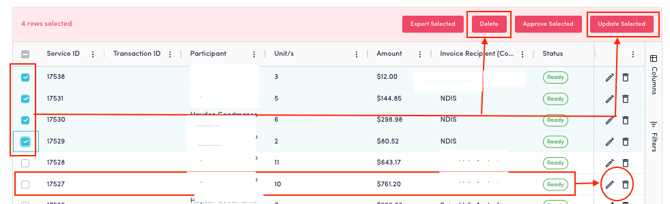
- **On quickclaim:** Click the **Edit** or **Delete** icons at the end of each record to update or remove them manually. Select multiple records via the checkboxes in front of each row and update or delete the selected records in bulk.
- **Via file import:** Correct the data in your Excel or CSV file and re-import it.
- In the **Action** column, use:
**U** – Update existing record
**D** – Delete record
**I** – Insert new record
#### Integration with Customer CRM
Quickclaim can be connected to this CRM using an **API integration**, which means:
- These records are **pushed directly into the Service Delivery module**, so there’s no need to enter them manually.
- Once in quickclaim, they appear in the **Processing tab**, where they can be reviewed, edited if necessary, and then approved for finalisation.
#### Adding Service Deliveries Manually
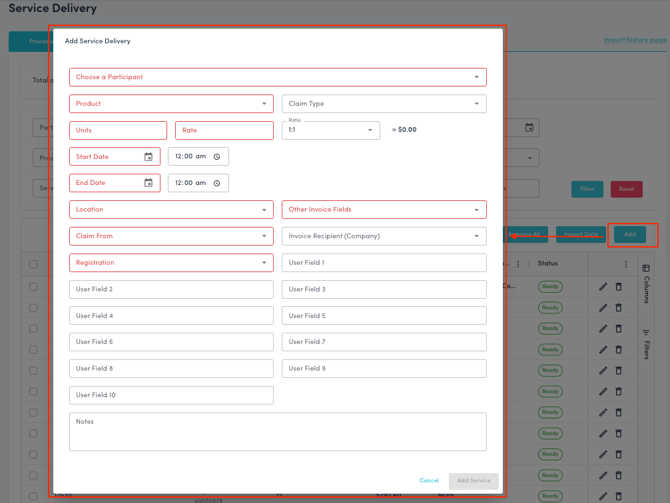
You can manually add a service delivery record by clicking the **Add** button.
This opens the **Add Service Delivery** form, where you can enter the required details.
After filling in the required information:
- Click **Add Service** to save the new record, or
- Click **Cancel** to discard and return to the list view.
### **Exporting Service Deliveries**
To export data from the service delivery page:
- Click **Export All** (blue button) to export every record, or
- Select specific records using the checkboxes, then click **Export Selected**.
### **Approving Service Deliveries**
You can approve service delivery records individually or in bulk.
- **Approve All:** Click the **Approve All** button to approve all available records at once.
- **Approve Selected:** Select specific records using the checkboxes beside each row, then click **Approve Selected**.
Once approved, the selected records move to Ready to claim if they are agency records and Ready to invoice page if they are plan and self-managed records.
### **Deleting Service Deliveries**
You can delete records individually or in bulk:
- **Delete Single Record:** Click the **Delete** icon at the end of a record’s row and confirm when prompted.
- **Delete Selected:** Select multiple records using the checkboxes, click **Delete Selected**, and confirm in the modal window.
### **Bulk Update**
To update multiple records at once:
1. Select the records using the checkboxes.
2. Click **Update Selected**.
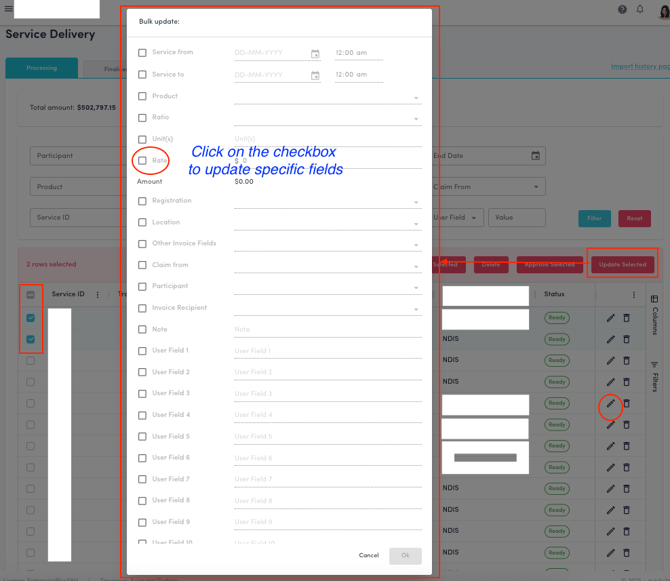
3. A form will open displaying all editable fields with checkboxes beside each.
4. Tick the checkboxes for the fields you want to update and enter the new values.
5. Save the changes to apply them to all selected records.
### **Filtering and Searching**
You can filter or search for specific service delivery records using the filter bar.
Filter by: Participant, NDIS Number, Start Date / End Date, Product, Location, Other Invoice Fields, Claim From (Agency or Plan and Self Managed), Service ID, Status (Ready, Error, Invalid), Created Date, User Fields and Values.
Click **Reset** to clear filters and view all records again.

### **Service Delivery Tabs**
The Service Delivery page includes two tabs:
- **Processing:** Displays all current and pending service delivery records.
- **Finalised:** Contains completed transactions that have been fully processed.
- **Deleted**: This newly added tab contains all the transactions that were deleted from the Service delivery processing tab. These help keep track of the service delivery records that were deleted and can be exported.
- [Getting Started](https://wiki.quickclaim.io/knowledge/getting-started?hsLang=en#main-content)
- [NDIS APIs](https://wiki.quickclaim.io/knowledge/getting-started?hsLang=en#ndis-apis)
- [Aged Care Web Services](https://wiki.quickclaim.io/knowledge/getting-started?hsLang=en#aged-care-web-services)
- [Accounts Receivable (AR) Module](https://wiki.quickclaim.io/knowledge/accounts-receivable-ar-module?hsLang=en)
- [NDIS](https://wiki.quickclaim.io/knowledge/ndis?hsLang=en#main-content)
- [Participants](https://wiki.quickclaim.io/knowledge/ndis?hsLang=en#participants)
- [Service Bookings](https://wiki.quickclaim.io/knowledge/ndis?hsLang=en#service-bookings)
- [Budget](https://wiki.quickclaim.io/knowledge/ndis?hsLang=en#budget)
- [Roster of Care](https://wiki.quickclaim.io/knowledge/ndis?hsLang=en#roster-of-care)
- [Service Delivery](https://wiki.quickclaim.io/knowledge/ndis?hsLang=en#service-delivery)
- [Claiming Workflow](https://wiki.quickclaim.io/knowledge/ndis?hsLang=en#claiming-workflow)
- [Invoicing Workflow](https://wiki.quickclaim.io/knowledge/ndis?hsLang=en#invoicing-workflow)
- [Support at Home](https://wiki.quickclaim.io/knowledge/support-at-home?hsLang=en#main-content)
- [Care Recipients](https://wiki.quickclaim.io/knowledge/support-at-home?hsLang=en#care-recipients)
- [Care Recipient 360](https://wiki.quickclaim.io/knowledge/support-at-home?hsLang=en#care-recipient-360)
- [Budget](https://wiki.quickclaim.io/knowledge/support-at-home?hsLang=en#budget)
- [Transactions](https://wiki.quickclaim.io/knowledge/support-at-home?hsLang=en#transactions)
- [Claims](https://wiki.quickclaim.io/knowledge/support-at-home?hsLang=en#claims)
- [Ready to Invoice](https://wiki.quickclaim.io/knowledge/support-at-home?hsLang=en#ready-to-invoice)
- [Statements](https://wiki.quickclaim.io/knowledge/support-at-home?hsLang=en#statements)
- [Tableau Analytics](https://wiki.quickclaim.io/knowledge/tableau-analytics?hsLang=en)
- [Settings](https://wiki.quickclaim.io/knowledge/settings?hsLang=en#main-content)
- [Registrations](https://wiki.quickclaim.io/knowledge/settings?hsLang=en#registrations)
- [Notifications](https://wiki.quickclaim.io/knowledge/settings?hsLang=en#notifications)
- [Releases](https://wiki.quickclaim.io/knowledge/releases?hsLang=en)
- [For Developers](https://wiki.quickclaim.io/knowledge/for-developers?hsLang=en#main-content)
- [API Getting Started](https://wiki.quickclaim.io/knowledge/for-developers?hsLang=en#api-getting-started)
- [Sandbox and Authentication](https://wiki.quickclaim.io/knowledge/for-developers?hsLang=en#sandbox-and-authentication)
- [Public API Reference](https://wiki.quickclaim.io/knowledge/for-developers?hsLang=en#public-api-reference)
- [Budget APIs](https://wiki.quickclaim.io/knowledge/for-developers?hsLang=en#budget-apis)
- [Errors and Limits](https://wiki.quickclaim.io/knowledge/for-developers?hsLang=en#errors-and-limits)
- [NDIS Rejection Codes](https://wiki.quickclaim.io/knowledge/for-developers?hsLang=en#ndis-rejection-codes)
- [Link](https://wiki.quickclaim.io/knowledge/link?hsLang=en#main-content)
- [Invoices](https://wiki.quickclaim.io/knowledge/link?hsLang=en#invoices)
- [Provider Remittance Advice](https://wiki.quickclaim.io/knowledge/link?hsLang=en#provider-remittance-advice)
- [Settings](https://wiki.quickclaim.io/knowledge/link?hsLang=en#settings)
- [Managing Payments](https://wiki.quickclaim.io/knowledge/link?hsLang=en#managing-payments)
[.png?width=113&height=24&name=quickclaim%20logo%20(high-res).png "Chill listening crop-3")](https://quickclaim.com.au)
[mailto:email@email.com](mailto:email@email.com)
Copyright © 2026, quickclaim